Add and edit clients
Create client records, keep their details current, and see everything attached to them.
Clients are the backbone of Raoura: proposals, contracts, invoices, projects, and the portal all attach to a client record.
Add a client#
- Go to Clients and click New client.
- Enter their name and email address, then save.
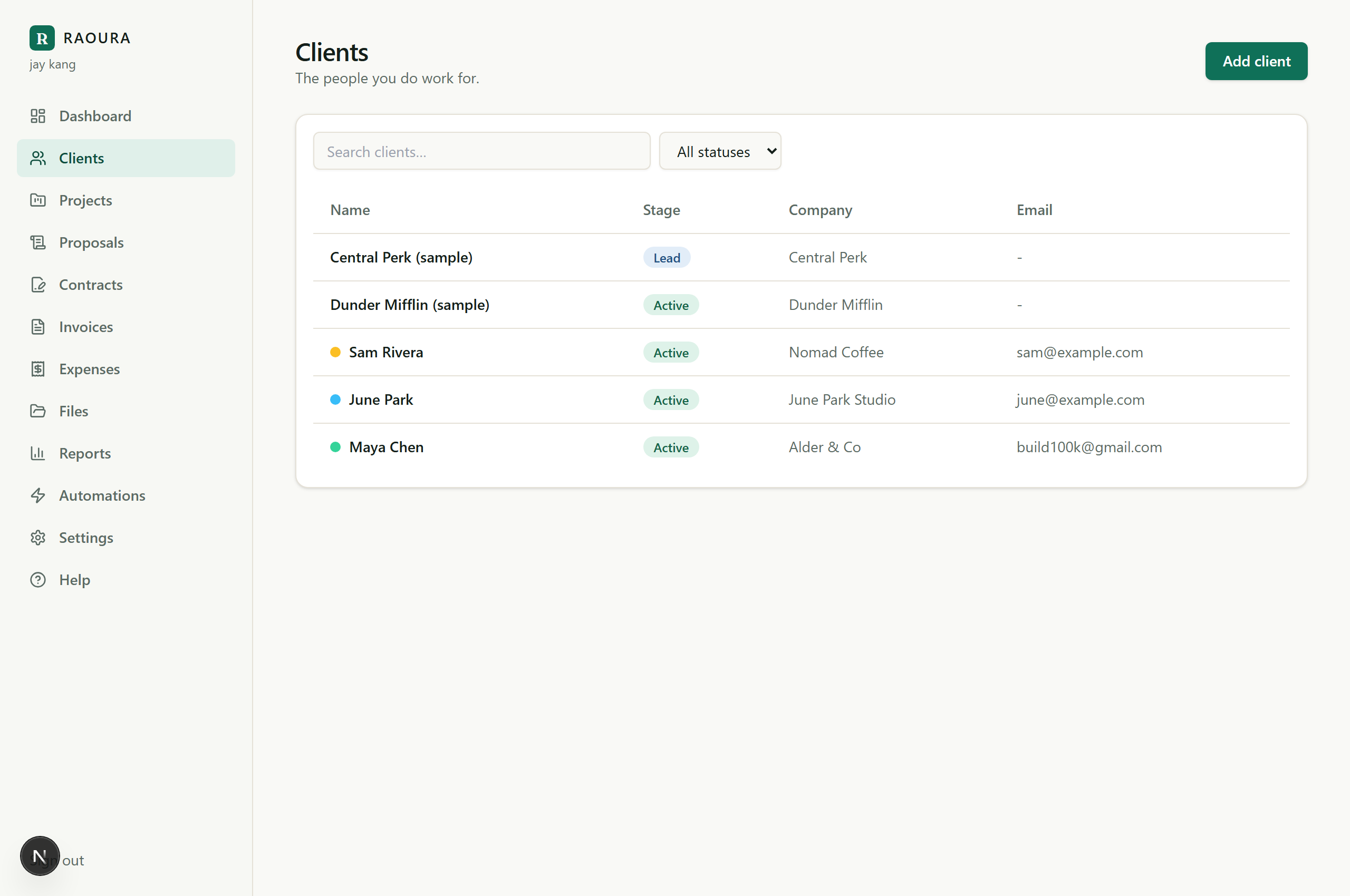
Keep the email accurate: reminders and notifications can only send to a client who has an email address on their record. If a client says they never got an email, the address here is the first thing to check.
Edit a client#
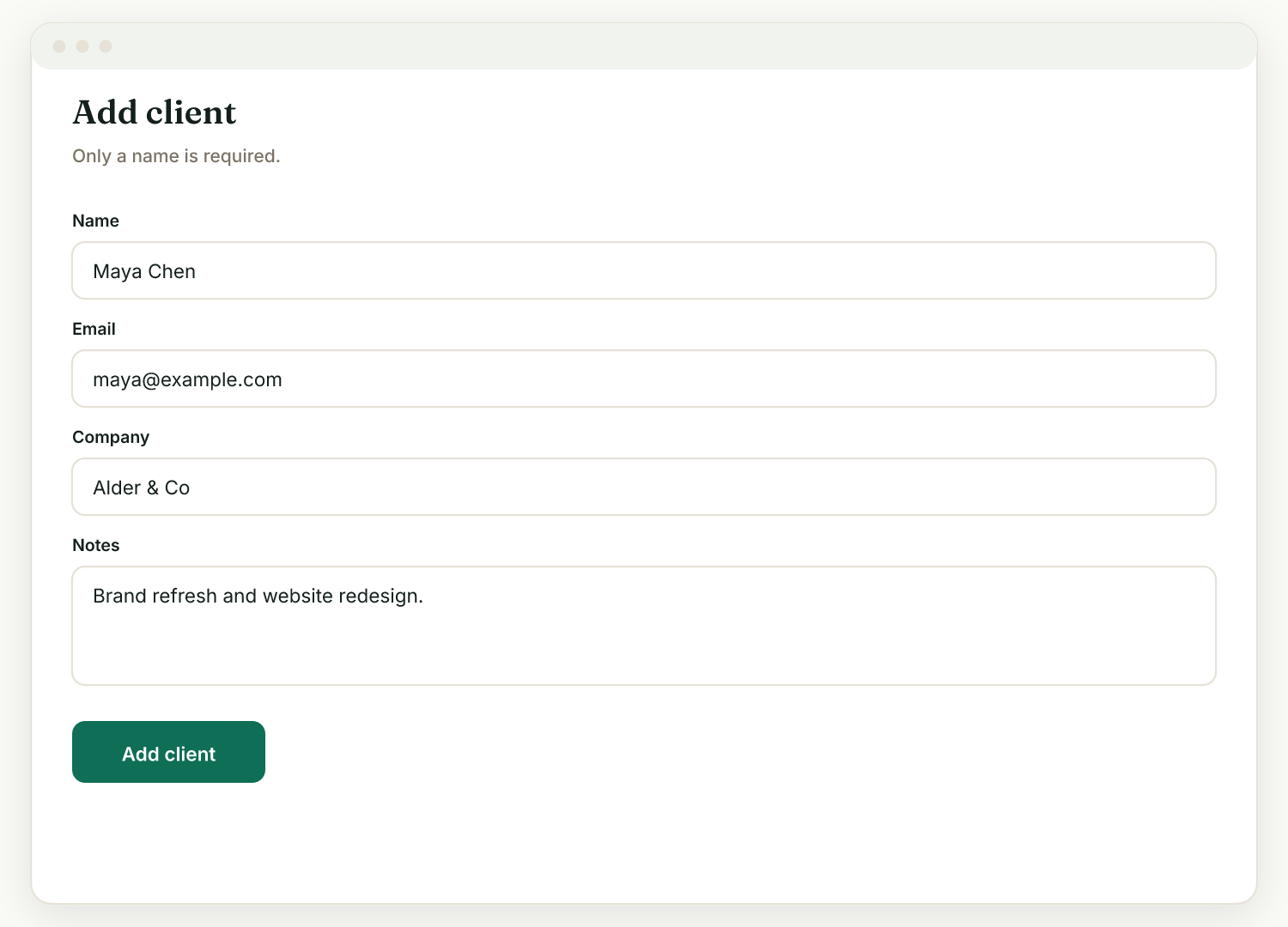
- Open Clients and click the client.
- Update their details and save. Changes apply everywhere the client appears.
What lives on the client's page#
- Their details (name, email).
- The Client portal card with their single branded portal link. Every existing client already has one, and new clients get one automatically.
- The work you have attached to them: proposals, contracts, invoices, and projects.
Tips#
- Add the client before you start their first proposal or invoice; both forms ask you to pick a client.
- Use Open portal on the client's page anytime to see exactly what that client sees.
Related: The client portal link · Client color labels
Was this helpful?
Ready to try it yourself?
Raoura is one flat plan at $17/month, with a 14-day free trial and no credit card required.
Start free trial