Project welcome message and cover
Add a cover image and a short welcome note to the client's project page.
You can give each project's client page a personal touch with a cover image and a short welcome message.
Set them up#
- Open the project.
- Find the Client portal card on the project page.
- Set a cover image for the top of the client's page.
- Write a welcome message, a short note shown at the top of their page. A line or two works best: what the project is, what happens next, how to reach you.
Preview what the client sees#
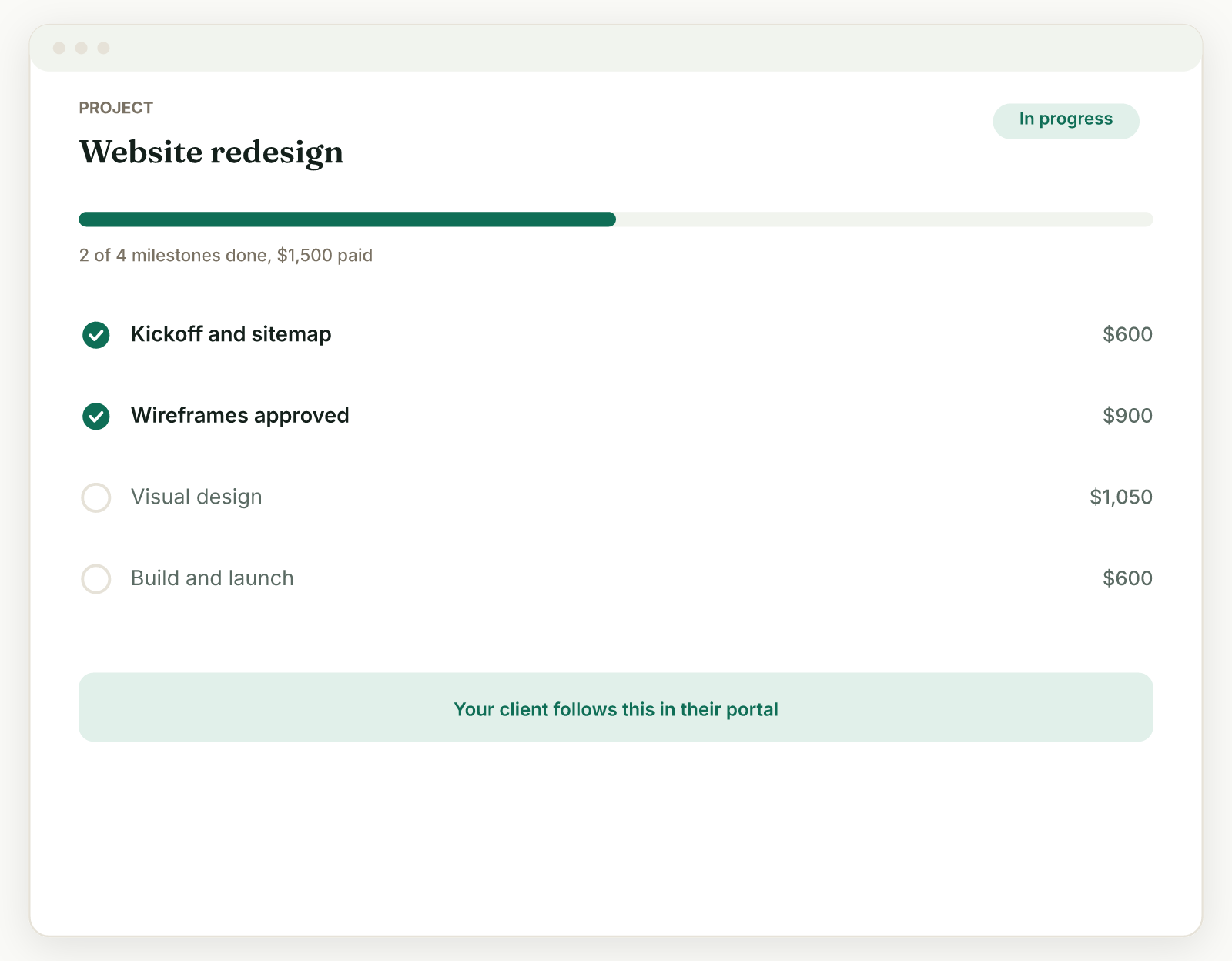
The link in that same Client portal card is your live preview. Open it anytime to see the client's page exactly as they will, cover, welcome message, milestones, and all.
What comes from your brand#
Colors, heading font, and theme are not set per project. They come from Settings, Brand, and apply across every client page: proposals, contracts, invoices, the portal hub, and project pages. Set your brand once and each project only needs its own cover and welcome note.
Related: Create a project · What clients see
Was this helpful?
Ready to try it yourself?
Raoura is one flat plan at $17/month, with a 14-day free trial and no credit card required.
Start free trial